SVG and DXF files for Silhouette, Cricut and laser cutters
You want to cut a shape from vinyl, heat-transfer film, paper or thin sheet material, and all you have is a picture. You are in the right place: makerito turns a PNG, a JPEG or an SVG into cutting-ready outlines, in two steps you can pick from.
What you can cut
- A vinyl decal from a simple logo, to stick on a mug, a window or a laptop.
- A flex textile design for a t-shirt or a tote bag, cut from heat-transfer film.
- A laser-cut piece such as a name tag or a small plaque, starting from the outline of your drawing.
Two files, two jobs
The DXF. The DXF tool takes an image or an SVG and gives back a DXF made for Silhouette Studio. Each contour is one closed polyline, rather than thousands of tiny line segments, so the file opens quickly. This was the whole point of the tool: a DXF exported through one common vector editor split every segment into its own line, and Silhouette Studio took about ten minutes to open one.
The SVG outlines. The image to SVG tool can produce an outline-only SVG, a black line drawing of your zones. Other cutting software may be able to open an SVG; check what your own machine's program accepts, since we have only designed the DXF for Silhouette Studio.
How to make a DXF for cutting
- Open the DXF tool with the button below.
- Load a file. PNG, JPEG and SVG are all accepted, with no conversion on your side.
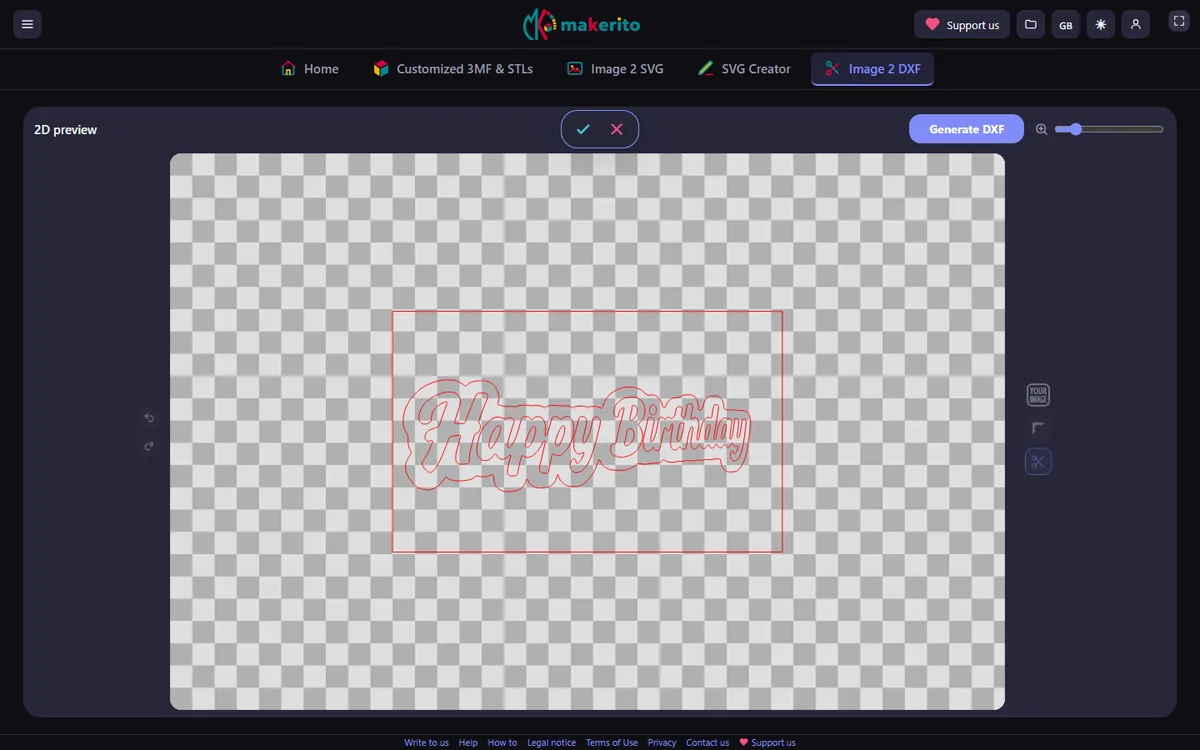
- Read the preview. It shows the outlines in red. That red line is what will be cut or drawn.
- Tune the detail. A Level setting, 10 by default, sets how many colors are kept before the outlines are extracted. A lower level merges close shades, so some inner borders disappear.
- Remove stray contours. An edit mode lets you exclude an outline, such as a speck of noise, before exporting.
- Export. The DXF takes the name of your input file, with the extension changed to .dxf.
Watch the 1-minute video · Open the DXF tool →
Size and scale
The outlines use millimeters: one SVG unit is one millimeter. Before you cut, check the size in your cutting software, and scale the design to fit the material you have.
Tips for clean cuts
Choose an image with clear shapes and strong contrast. Fine details that are smaller than your blade or laser can follow will not cut well, so remove them in the edit mode, or simplify the drawing first with the image to SVG tool.
Questions
Can I use a photo? You can, but a photo has no clean borders. A logo or a drawing with solid shapes gives a better cut.
Can I resize the design? Yes, in your cutting software, before you send the job to the machine.
Will the DXF open in Cricut or laser software? The tool is built for Silhouette Studio. For other programs, test with a small piece first.